
If your organisation is looking to automate boring, repetitive and time consuming tasks for your team and deliver an excellent customer experience at the same time then Microsoft Power Automate and Copilot Studio will be worth a look.
Power Automate is a behind-the-scenes application that allows you to connect the conversational AI agents of Copilot Studio to your own databases, apps, and services. This allows everyday language to trigger automated actions.
The use cases for these low-code automation tools reach right across customer service, IT help desks, sales pipeline management, and HR onboarding. If you’re working on approvals, using AI to process documents, or creating agents that start complicated workflows, learning how to use Microsoft tools like Power Automate and Copilot Studio together will take your automation to the next level.
So, what is it about Power Automate and Copilot Studio that makes them so powerful? This blog will explain further with some easy-to-understand and useful examples.
Which users are Power Automate and Copilot Studio designed for?
Power Automate and Copilot Studio are both low-code/no-code tools that are part of the Microsoft Power Platform. They are made for people who have some IT expertise, such as in-house IT teams, business analysts, and power users. They want to make automations and AI-driven agents without having to be full-blown developers. This method lets businesses create and grow automation solutions without having to rely too much on traditional development tools.
Power Automate can also be used on its own to automate many business tasks, such as approvals, data updates, and system integrations. Power Automate also has built-in AI features through services like AI Builder. This lets businesses use smart automation for things like processing documents, making predictions, or extracting data without needing Copilot Studio.
When used with Copilot Studio, these workflows can be started by talking to them, which adds a conversational interface on top of existing automation. But you can use either tool alone or together, depending on what you need it for, whether that’s back-end process automation, conversational AI, or both. Our blog explains how to get started with Copilot Studio to design your own intelligent AI assistant.
One of Power Automate’s best features is that it connects to other apps right away. It gives you access to hundreds of pre-built connectors that are easy to set up. This lets you connect to Microsoft services like Teams, SharePoint, Outlook, and Dataverse, as well as third-party platforms like Salesforce, SAP, and more.
This lets you automate tasks across many systems and applications without having to write any code. This is especially useful for businesses that use a variety of tools and platforms.
What is Power Automate?
Microsoft Power Automate is a cloud-based helper that will automate workflows across systems between all your favourite apps. This includes tasks such as syncing files, sending notifications, retrieving data, all without needing to manage complex code. Using this low-code / no-code approach, AI, and robotic process automation (RPA) and by simply by dragging and dropping components you can save you both time and money.
Power Automate can carry out simple tasks, like sending notifications, and more complicated ones that involve multiple apps and services. It’s adaptable and can grow with your needs, so it’s great for a lot of different automation tasks in a modern office.
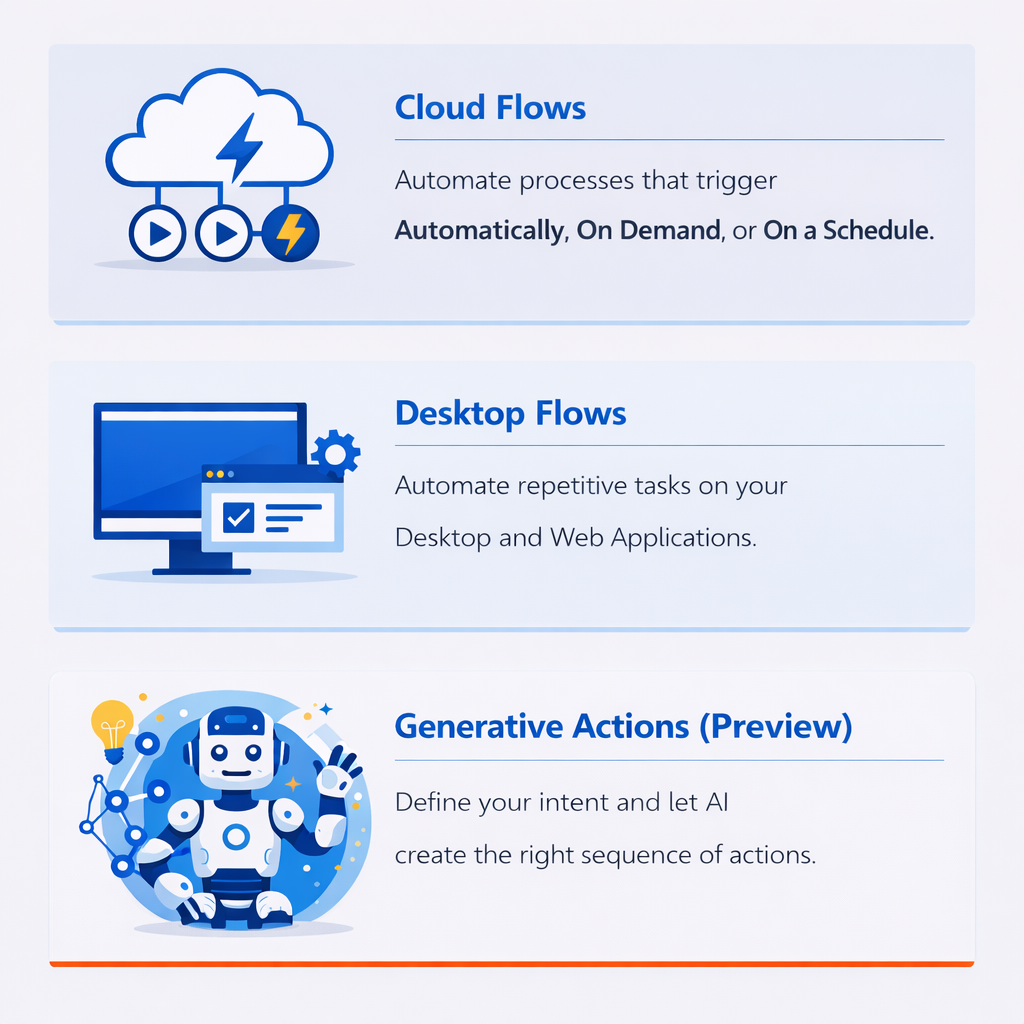
Power Automate has three different types of flows, each designed for a different type of automation problem. They can be mixed and matched to get the best results.
Copilot Studio: how to build your own Smart AI Agents
Copilot Studio puts the power in your hands to build AI agents, conversational AI agents (your custom copilots) using plain English, generative AI smarts, and low-code options, which are ready to drop into Teams, websites, or mobile apps.
Copilot Studio is a visual, low-code tool that lets people create custom AI agents and chatbots without needing deep technical skills. It was designed for both business users and developers, which makes it easier to create conversational assistants that meet the needs of real businesses.
Our recent Case Study shows how Compete366 worked with DSG to implement AI-driven dealer onboarding transformation using Microsoft Copilot Studio.
Copilot Studio comes with a set of practical features that make it easier to build and run AI-powered experiences. You can create agents for internal teams or customers, connect them to your business data, guide conversations in a controlled way, and trigger real actions through automation.
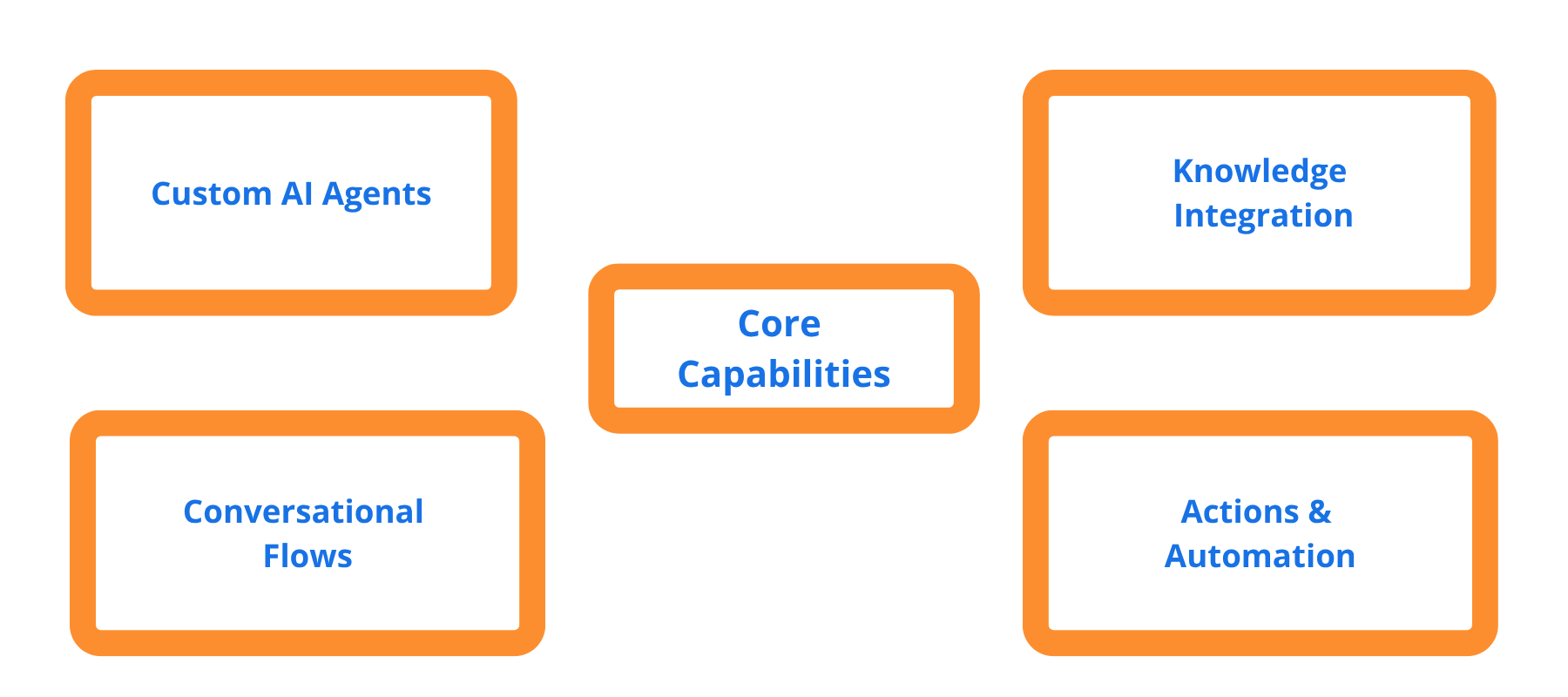
Custom AI agents: Build standalone copilots for employees or customers or extend Microsoft 365 Copilot so it can work with other business systems.
Knowledge integration: Hook your agent into data sources using built-in or custom connectors, so responses are grounded in your organization’s information.
Conversational flows: Design structured conversation paths for important scenarios, giving you more control over things like account handling, authentication, and system interactions.
Actions and automation: Connect to Power Automate, APIs, and other services so the agent can do tasks like sending emails, creating tickets, or updating records automatically.
Why is Power Automate central to Copilot Studio?
The connection between Power Automate and Copilot Studio is changing the way businesses use AI in real life. Power Automate works behind the scenes to connect conversational AI agents that understand natural language to systems, data, and services. Copilot Studio focuses on building these agents, and together, they make sure that AI is more than just a way to talk to people and is used in real business processes.
Power Automate connects conversations to real actions. When a user talks to a Copilot Studio agent, it can start flows that handle tasks like approvals, data updates, notifications, or even more complicated processes that take several steps.
Organisations can use this combination to create smart automation solutions that combine conversational AI with real-world results.
Recent updates to Copilot Studio have made this integration even stronger by making it easier to choose models, making it easier to test them, and by connecting more deeply across enterprise systems with Power Platform connectors and Microsoft Graph.
From conversation to automation: how Copilot and Power Automate drive business workflows
A lot of organisations waste time on tasks that are the same over and over, like updating records, sending notifications, or routing approvals. These tasks are important, but they don’t always need people to make decisions.
You can automate these tasks from start to finish by using Copilot’s conversational interface and Power Automate’s workflow engine together. Power Automate works with hundreds of systems, such as Microsoft Teams, SharePoint, Outlook, Dataverse, Salesforce, and SAP.
One of the powerful aspects of combining Copilot Studio with Power Automate is that you can turn a simple conversation into real business actions that happen behind the scenes.
What are some real-world use cases for Power Automate plus Copilot Studio?
The combination of Power Automate with Copilot Studio means that your team members will be able to reduce the amount of manual processing on a daily basis. It will reduce the need for users to fill out forms, switch between systems, or send follow up emails. They just have to say what they need, and the system will take care of the rest.
From the user’s point of view, it seems like they are just talking to an AI assistant. Power Automate, on the other hand, manages the workflow logic in the background by handling approvals, updating records, sending notifications, and connecting with business systems.
In general, Copilot Studio agents and Power Automate flows work like this: the agent takes care of the conversational interface (understanding intent and gathering data), and the flow takes care of the backend logic (API calls, database updates, or complicated approvals).
IT Service Management & Helpdesk
This is one of the most common adoption areas, allowing agents to resolve Tier 1 support issues without human intervention.
The interaction typically follows this flow:
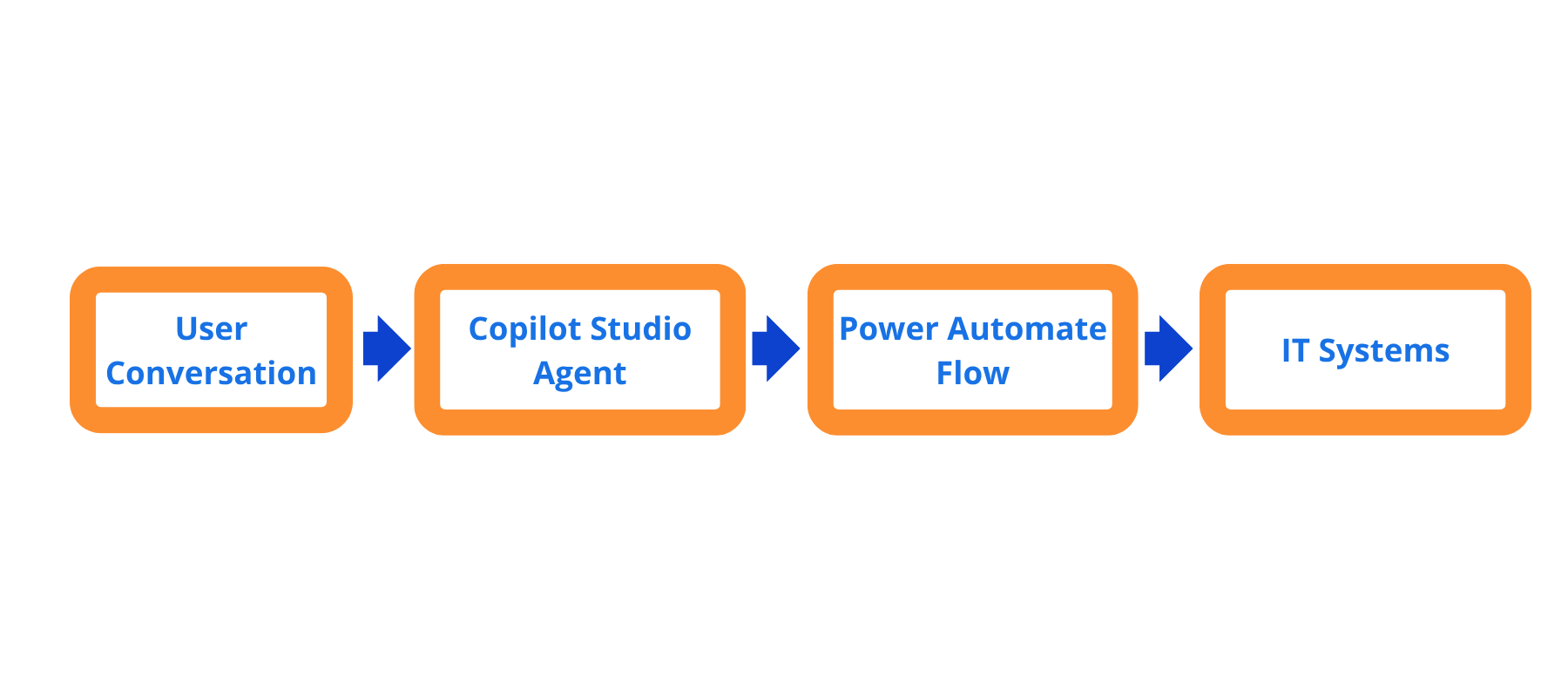

An employee types: “My laptop is not connecting to Wi-Fi”. The Copilot agent asks a few follow-up questions to understand the issue and then triggers a Power Automate flow. The flow categorizes the problem and routes the ticket to the appropriate support team.
This reduces triage time and ensures tickets are assigned correctly without manual effort.
An employee asks: “I need a Visio license”. The Copilot agent captures the request and triggers a Power Automate flow. The flow checks license availability sends an approval request to the manager through Teams, and once approved, automatically assigns the license.
This removes manual requests, speeds up approvals, and ensures licenses are provisioned without delays.
A user types: “I’m locked out of my account”. The Copilot agent asks a few quick questions to verify the user’s identity and then triggers a Power Automate flow. The flow connects to Microsoft Entra ID to reset the password or unlock the account and shares a temporary password securely.
This allows users to resolve access issues instantly without contacting the IT helpdesk.
Sales Use Case: Updating the CRM
On receiving an inbound sales enquiry, the sales administrator might say “Create a new client record and notify the sales team.”
This single request can trigger a workflow that creates a record in a CRM system, stores documents in SharePoint, and sends a notification in Teams, all automatically.
Administration Use Case: Document Approvals
Another common scenario is approvals. Traditionally, approvals rely on emails and manual follow-ups, which can cause delays. With Power Automate, approval workflows can be triggered directly from a Copilot conversation. The system can send requests to the right stakeholders, track responses, and update statuses automatically without requiring users to monitor the process.
Use Case: Operational Compliance & Field Service
These scenarios are common in industries where teams need to follow strict daily procedures or safety checks.
Another common scenario is approvals. Traditionally, approvals rely on emails and manual follow-ups, which can cause delays. With Power Automate, approval workflows can be triggered directly from a Copilot conversation. The system can send requests to the right stakeholders, track responses, and update statuses automatically without requiring users to monitor the process.

Use Case: Customer Service & Sales Enablement
The flow of the interaction will be as follows:
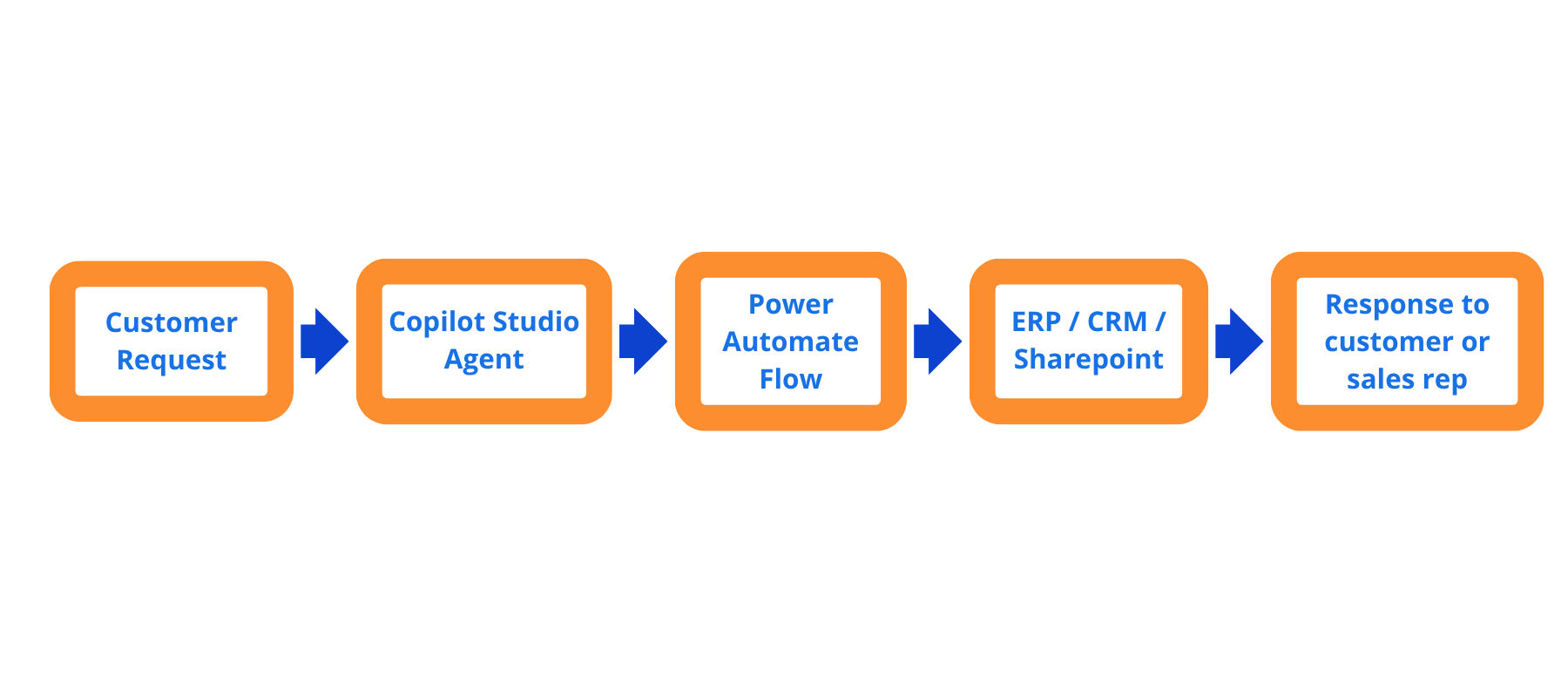
Order Status & Returns (R3 Retail Development)
Retail companies receive thousands of customer inquiries about order status and returns. Instead of routing every request to a support agent, a Copilot Studio agent can handle many of these interactions automatically.
For example, R3 Retail Development used Copilot Agent to automate around 40–50% of customer calls (which are around 60k–80k per month). The agent identifies the customer and order number through conversation, then triggers a Power Automate flow that retrieves real-time shipping information from the ERP system. It can also generate return labels or provide delivery updates instantly without needing a live support agent.
Sales Collateral Retrieval
Sales teams often spend time searching for the latest product brochures, presentations, or pricing documents. A Copilot agent can simplify this process.
Instead of manually browsing document repositories, sales reps can simply ask the Copilot agent for the material they need. The agent triggers a Power Automate flow that searches internal repositories like SharePoint or CRM systems and returns the latest approved sales collateral directly in the conversation. This helps sales teams respond faster and ensures they always use the most up-to-date content.
HR Use Cases: Annual Leave Requests
Here’s a simple HR example. A team leader might say: “Approve the annual leave request for Andy.”
The Copilot agent uses natural language understanding to understand what this request means. It works out what the person wants (to approve a leave request) and gets the information it needs, like the employee’s name or request ID, either from the conversation or by asking the user.
The Copilot agent doesn’t take action itself; instead, it starts a Power Automate flow. This is where the real work of automation takes place. The flow takes in the input and carries out a structured process, like:
1. Getting information about a request from a system like Dataverse
2. Checking business rules
3. Sending a request for approval to the right manager
4. Waiting for the decision on approval
5. Changing the status of the request
6. Letting the employee know by email or Microsoft Teams once their request has been approved or otherwise.
The Copilot conversation gets the result back once the process is done. After that, the agent can respond with something like:
“Your annual leave request has been approved and the status has been updated.”
This makes a smooth loop of conversation, automation, and response, making it look like there is only one smart system when, in fact, many services are working together behind the scenes.
The flow of the interaction will be as follows:
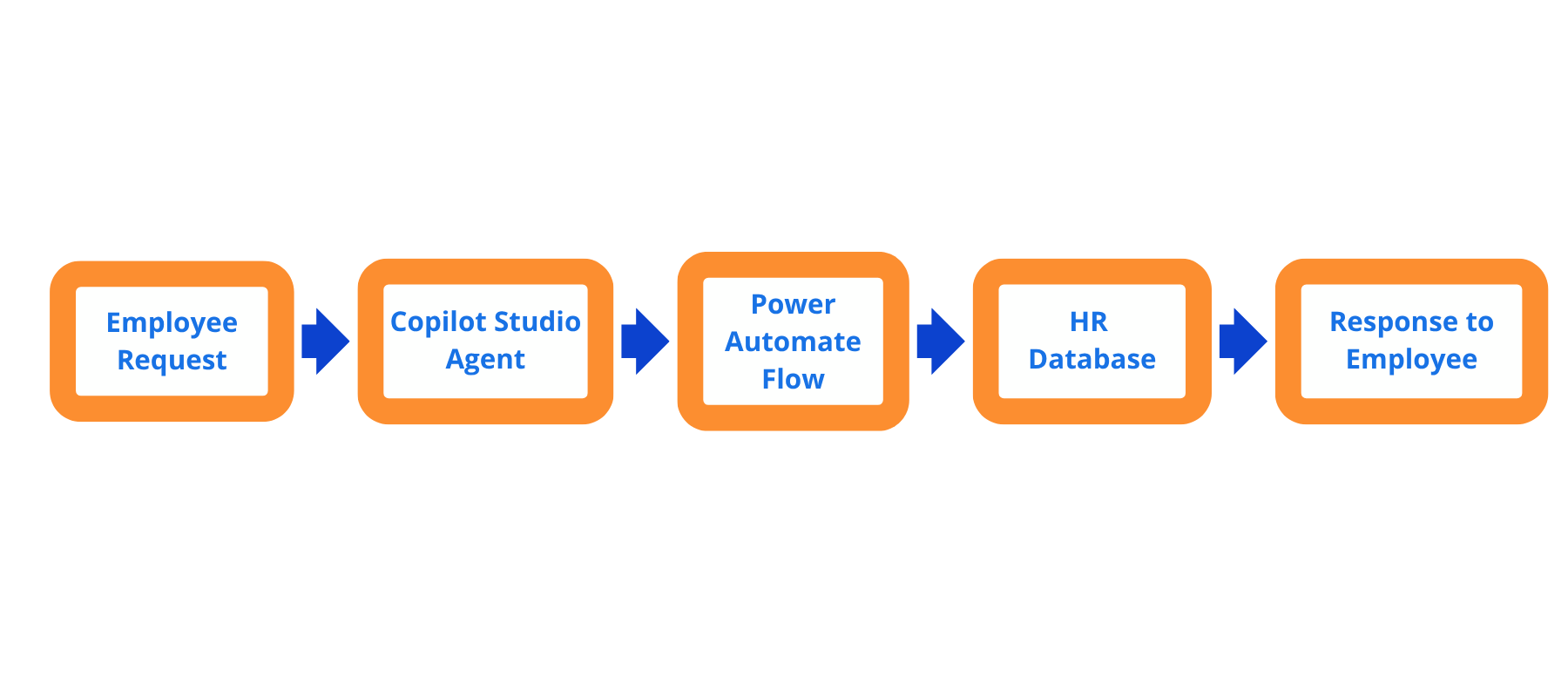
Employee Onboarding
A “New Hire Buddy” Copilot agent helps guide new employees through their first few days.
When a new employee says, “I’m ready to get started,” the agent triggers a Power Automate flow that sets up their onboarding tasks. This can include generating an email signature, adding them to relevant Teams channels, granting access to required tools, and scheduling introductory meetings with their manager and team. This makes the onboarding process smoother and speed up approvals coordination for HR teams.
In Summary
By combining Copilot Studio and Power Automate, companies can move from simple AI interactions to fully automated business processes.
Instead of acting as a passive assistant, the AI agent becomes an active part of operations by:
- Triggering workflows
- Updating business systems
- Coordinating tasks across teams
- Returning real-time results to users
Copilot Studio makes AI easy to use by letting people talk to it like they would to a real person. And if you’d like to find out more about it’s integration with Azure – read this recent blog post (https://www.compete366.com/blog-posts/advanced-microsoft-copilot-studio-features/)
Power Automate does the hard work behind the scenes to turn those conversations into real results. They work together to help businesses make solutions that can grow with them, increase productivity, lower costs, and encourage new ideas without a lot of coding.
If you’re already a Microsoft user, this powerful combination makes it easy to adopt AI transformation without needing to write a lot of code. It gives you the power and freedom to handle anything that your organisation asks of you, from making customer service easier to making internal processes run more smoothly to dealing with complicated multi-step tasks.
What Next?
If you’d like to discuss how you could use Power Automate combined with Copilot Studio in your organisation, need to understand more about the tools and features that are included and the commercial aspects, then please contact us for a free discussion with one of our Certified Azure technical consultants:
One final thing
If you’ve enjoyed reading this Blog Post, then sign up at the bottom of this page to receive our monthly newsletter where we share new blogs, technical updates, product news, case studies, company updates, Microsoft and Cloud news (scroll down to the sign up block on this page)
We promise that we won’t share your email address with other business or parties, and will keep your details safe. You can choose to unsubscribe at any time.
Related Posts


Contact our Microsoft specialists
Phone or email us to find out more – or book a free, no-obligation call with our technical consultants using the contact form.
“It’s great to work with the Compete366 team, the team members are really knowledgeable, helpful and responsive. No question is too difficult for them. They have really helped us to manage our Azure costs and ensure we have the right environment. When we bring a new customer on-board we can scale up immediately via the Azure portal and quickly make environments available to our customers.”
“We also find that there’s never a heavy sales pitch from them – they are technically focused and recommend what’s right for us.”
“We had great support from the Compete366 AVD expert, who was really helpful, and guided me through options to tackle issues that arose.”
“The great thing about our AVD set up is that we have a custom set up for each project which Compete366 showed me how to do. And with the scalability and flexibility of AVD – we can meet clients’ expectations and get project users up and running more quickly.”
“We were immediately impressed with the advice that the Compete366 specialists in Azure Architecture were able to provide. This was all new to us and we really needed some external expertise that we could use to get our questions answered. The beauty of working with Compete366 is that we transferred our Azure consumption to them, and at the same time received all of their advice and guidance free of charge.”
“Working with Compete366 has been like extending our own team – they are extremely and easy to work with. Right from the outset, it was clear what was on offer – everything was presented to us in a straightforward and uncomplicated way. They also provided just the right level of challenge to our developers and saved us time and money by suggesting better ways to implement our infrastructure.”
“Compete366 were able to help us leverage some useful contacts in Microsoft. We really value the expert advice and guidance that they have offered us in setting up a highly scalable infrastructure. We are also setting in place a regular monthly meeting which will allow us to further refine our architecture and ensure we keep on track as our requirements grow and change.”
“I have been delighted with the migration, where my team worked very hard, supported by expert advice from Compete366, and achieved everything in the timescale we had set out. Compete 366 made sure that we didn’t make any expensive mistakes, and guided us through the process”